
Audio Features
Asset Loadout provides powerful, non-destructive audio editing tools powered by FFmpeg. Edit audio files with precision without modifying the originals.
Visual Waveform Editor
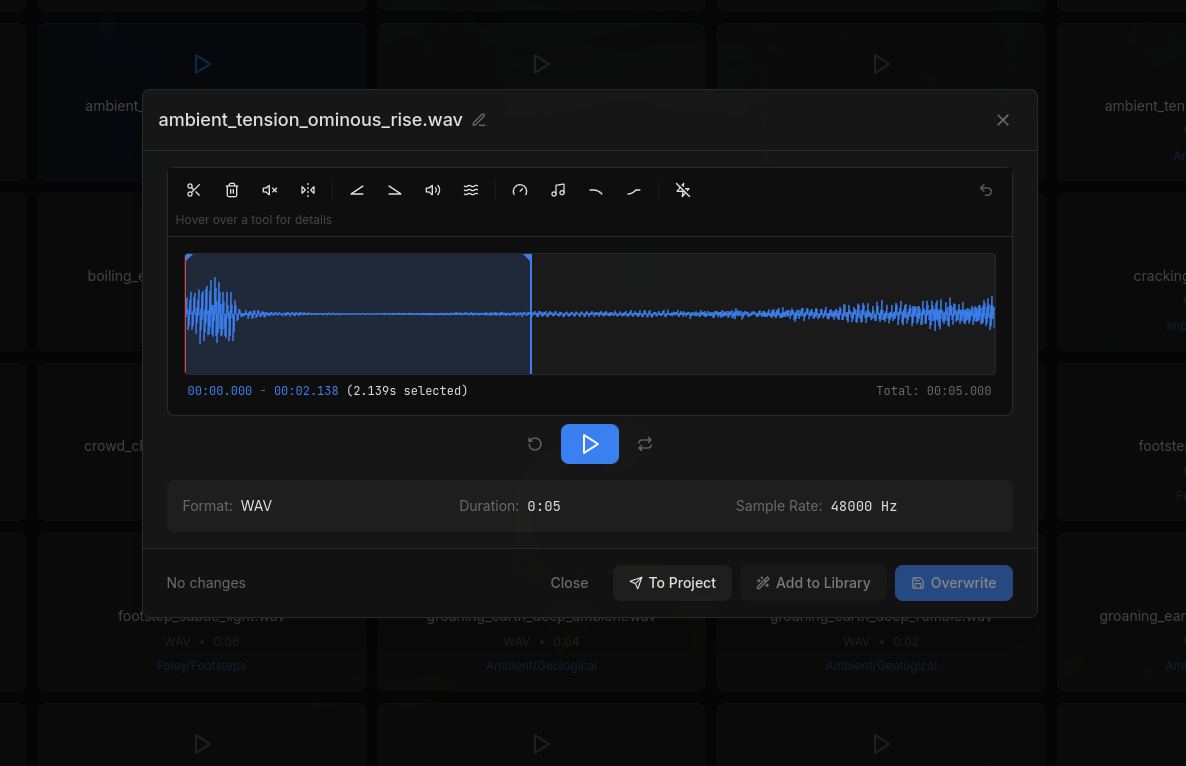
The waveform editor lets you see your audio visually and make sample-accurate selections for editing.
Selection Tools
- • Click and drag to select regions
- • Zoom in/out for precision editing
- • Preview selection before applying
- • Sample-accurate cursor positioning
Playback
- • Press spacebar to play/pause
- • Loop selected region
- • Real-time waveform visualization
- • Scrub through audio
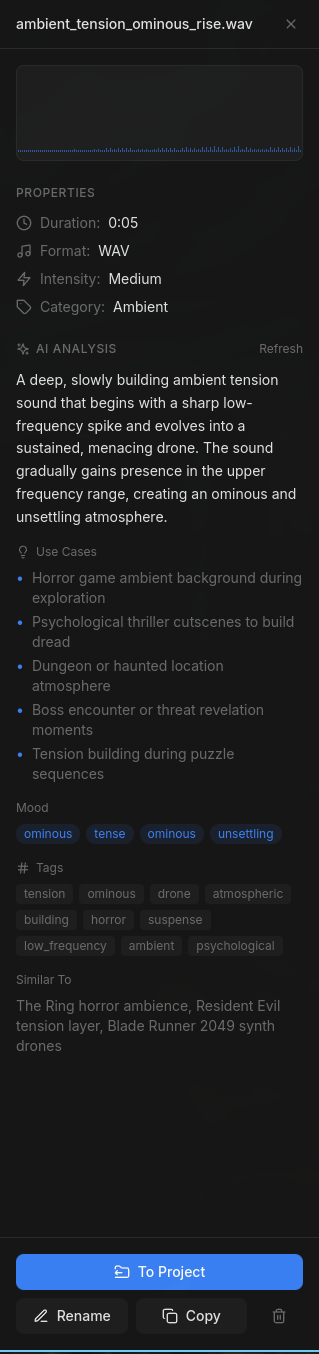
AI-Generated Metadata
AI analyzes each audio file and generates rich metadata - descriptions, use cases, mood, intensity, and more. This metadata powers everything else in Asset Loadout.
Smarter Search
Search goes beyond filenames. Look for "hard material" and find metal impacts, stone scrapes, and ceramic clinks - even if none have "hard" in the name. This expands your creative options by surfacing assets you wouldn't have thought to use.
Intelligent Organization
AI reorganization uses metadata to group related assets into logical folders. Sounds are categorized by what they are, not just what they're named.
Future Possibilities
Rich metadata opens doors for AI to do more creative work - finding sounds that complement each other, suggesting variations, or building cohesive soundscapes automatically.
Audio Editor Tools
A complete toolbar of editing operations organized by function. All operations are non-destructive - your original files remain untouched.

Edit Tools
Trim
Keep only the selected region. Perfect for isolating the exact portion you need.
Cut
Remove selection and join remaining. Great for removing unwanted sections.
Silence
Mute the selected region without removing it. Useful for creating pauses.
Reverse
Play selection backwards. Create interesting sound design effects.
Volume Tools
Fade In
Gradually increase volume from selection start to end.
Fade Out
Gradually decrease volume from selection start to end.
Normalize
Maximize volume without clipping. Essential for consistent levels.
Gain
Adjust volume by decibels (+/- dB). Fine-tune loudness manually.
Effects Tools
Speed
Change playback speed (affects pitch). Speed up or slow down audio.
Pitch
Shift pitch without changing speed (semitones). Create variations.
Low Pass
Remove high frequencies. Creates muffle/distance effect.
High Pass
Remove low frequencies. Creates thin/clean effect.
Utility Tools
Auto-Trim
Remove silence from start and end automatically. Saves time when cleaning up recordings.
Selection Required: Edit tools (Trim, Cut, Silence, Reverse, Fade In, Fade Out) require a selection on the waveform. Other tools work on the entire file.
Sound Design Tips
Create Variations
Use pitch shift (-12 to +12 semitones) to create multiple variations from a single recording.
Distance Effects
Use Low Pass filter to simulate sounds through walls, underwater, or far away.
Monster Voices
Slow down speed to 0.5x for deep, menacing creature sounds.
Radio/Intercom
Use High Pass to remove bass for thin, tinny communication sounds.
Format Conversion & Export
Convert audio between formats and optimize for your game engine.
Supported Formats
Export Options
- • Adjustable quality/bitrate
- • Sample rate conversion
- • Normalize on export
- • Export directly to game project
Pro tip: OGG format is recommended for games - smaller file size with good quality. Use WAV for lossless editing.
Next: Learn About AI Features
Discover how AI can automatically analyze audio, suggest metadata, and help organize your sound library.
AI-Powered Features →