
Getting Started with Asset Loadout
Learn how to download, install, and configure Asset Loadout to start managing your game assets with AI-powered tools.
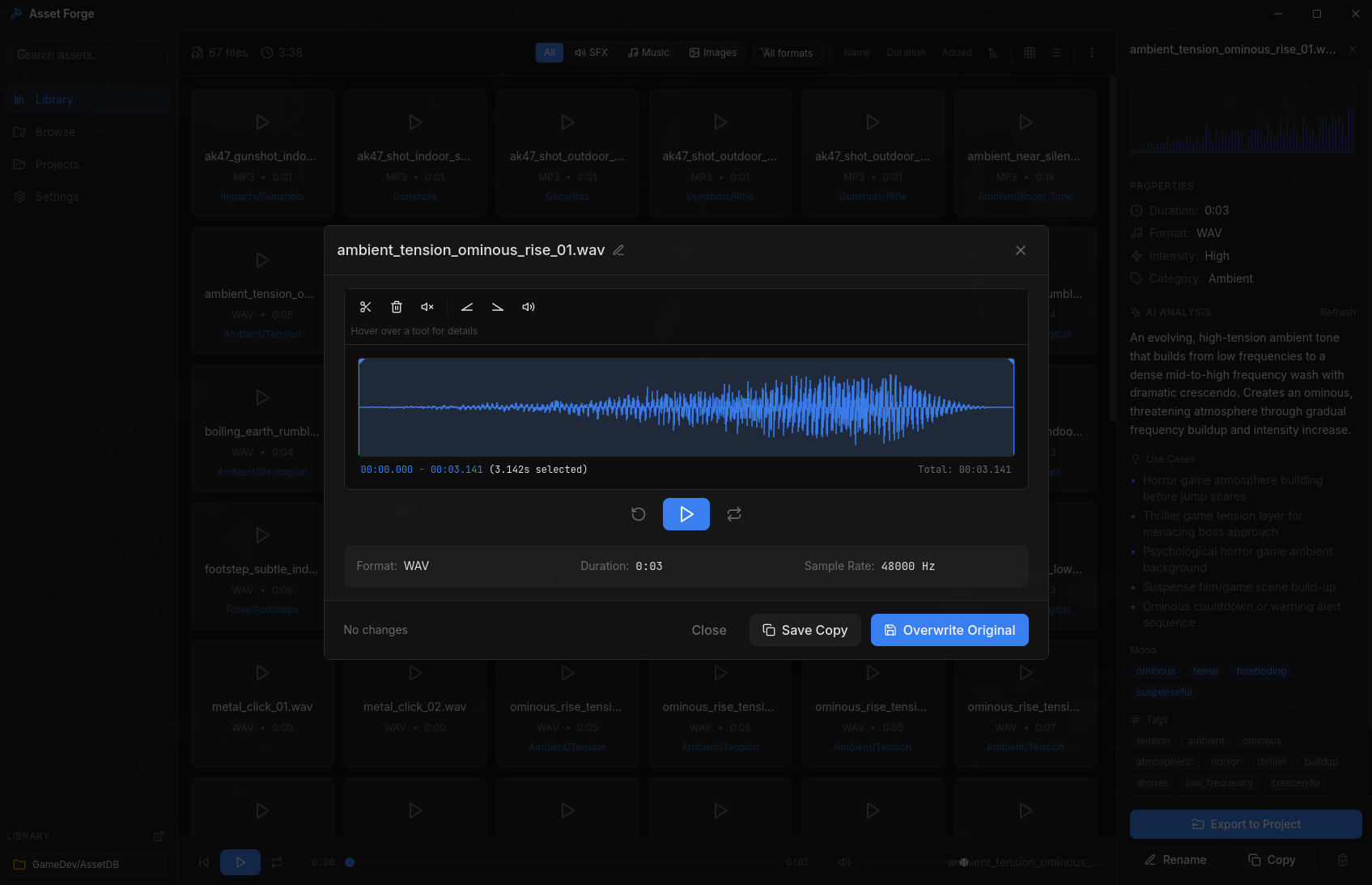
1. Download & Install
Head to your Account page and download the appropriate version for your operating system:
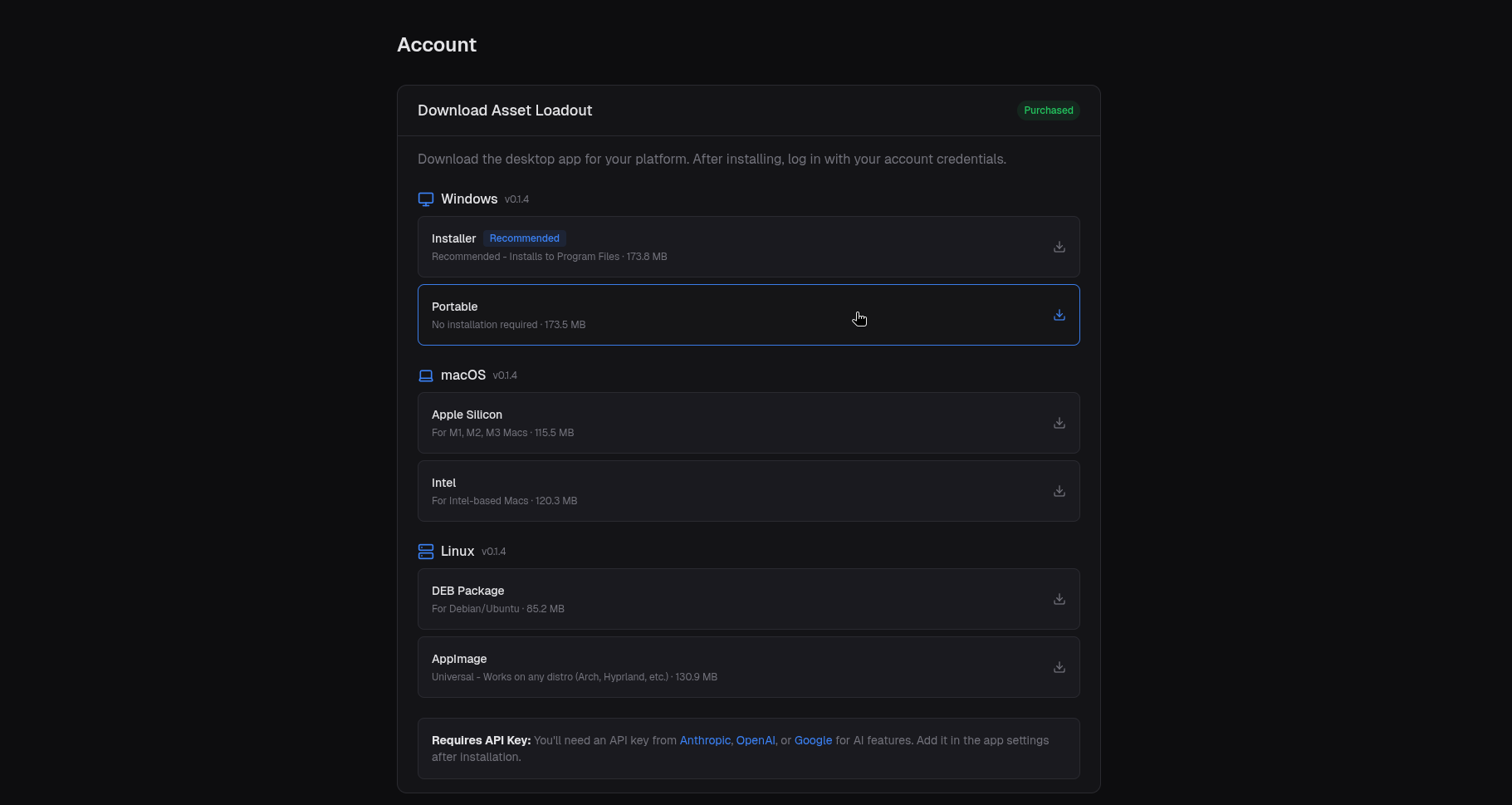
Windows
- • Installer (recommended)
- • Portable executable
macOS
- • Apple Silicon (M1/M2/M3)
- • Intel (older Macs)
Linux
- • AppImage (universal)
- • DEB package (Debian/Ubuntu)
Installation tip: On Linux, make the AppImage executable with chmod +x Asset.Loadout.AppImage
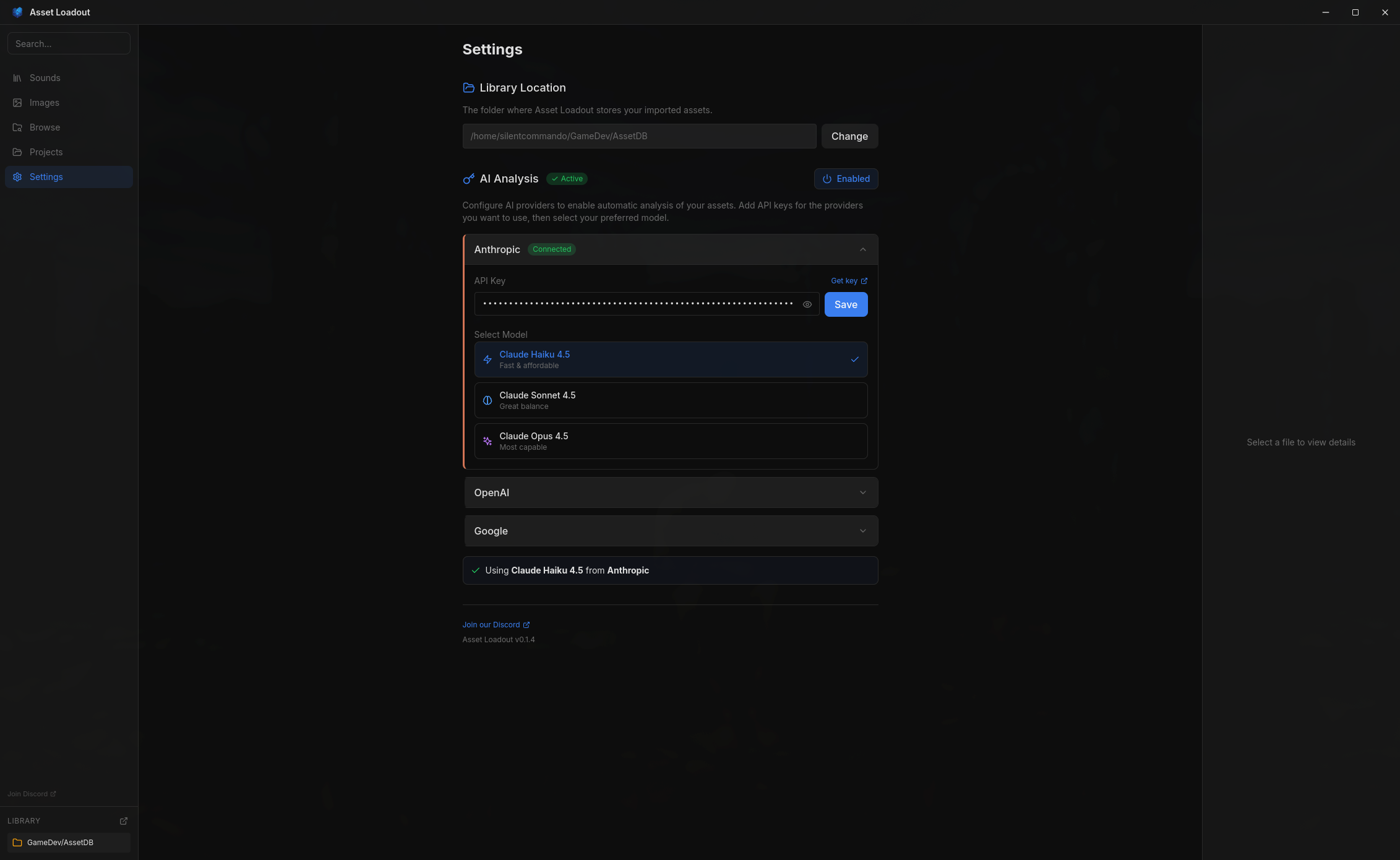
2. Add Your AI API Key
Asset Loadout uses AI to analyze and organize your assets. You'll need an API key from one of these providers:
Anthropic Claude →
Recommended. Excellent at audio analysis via spectrograms.
OpenAI GPT →
Great for image and texture analysis.
Google Gemini →
Cost-effective option with multimodal capabilities.
How to add your key: Open Asset Loadout → Settings → AI Provider → Select your provider and paste your API key.
3. Set Up Source Folders
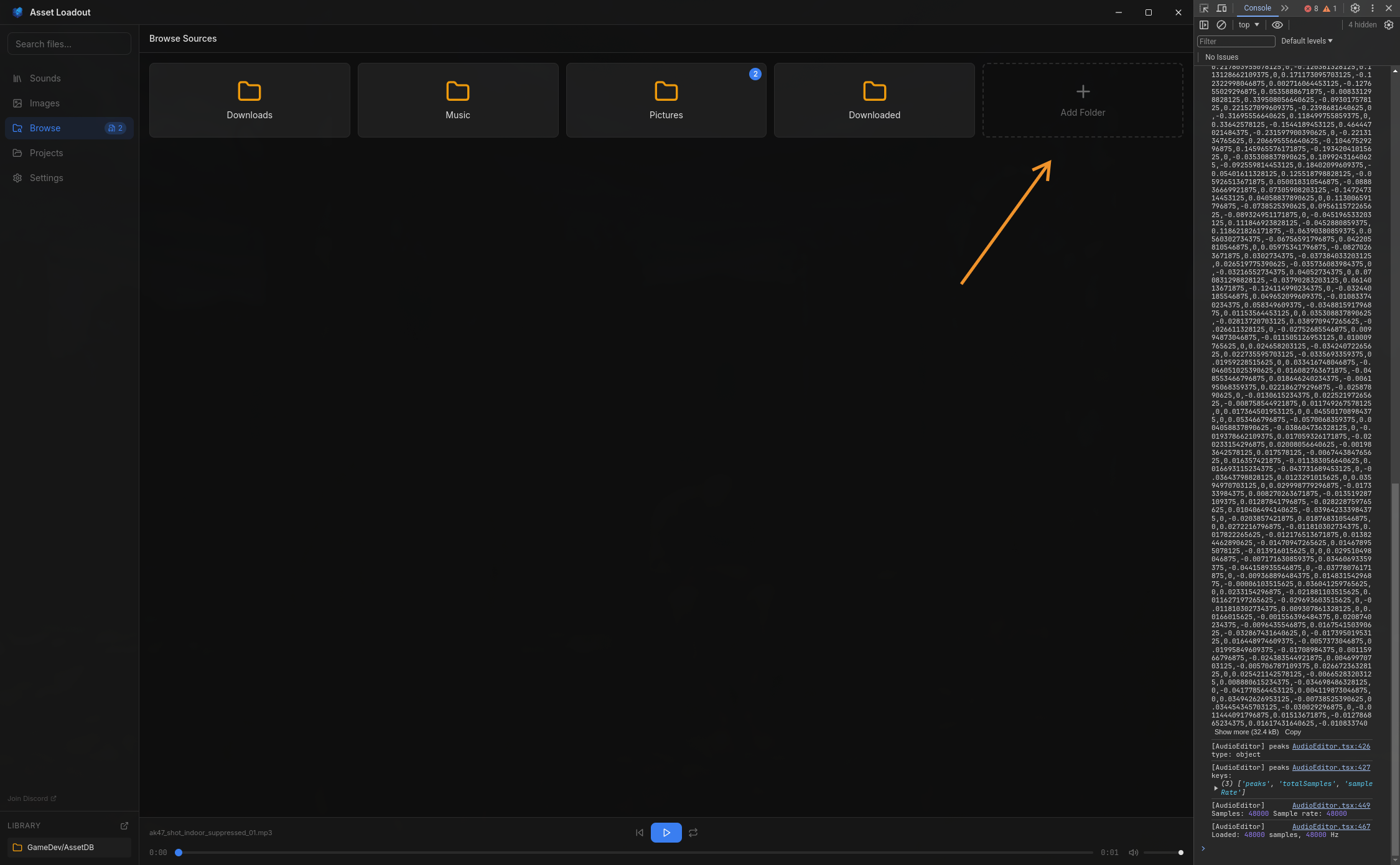
Asset Loadout watches your source folders for new files. By default, it monitors your Downloads folder.
Add custom folders:
- Go to Settings → Source Folders
- Click "Add Folder"
- Select folders where you keep downloaded assets
Auto-detection: Asset Loadout will automatically detect new audio and image files in these folders and show you a "new files" badge in the Browse view.
4. Import Your First Assets
You're ready to start organizing! Here's how to import your first assets:
Quick Import
- Go to Browse view
- Navigate to a folder with audio/image files
- Right-click a file → "Import to Library"
- AI will analyze and suggest metadata
Batch Import
- Go to Browse view → Click "Import All" or "Scan & Import"
- Review detected files and duplicates
- Enable AI analysis for automatic tagging
- Click "Import Selected"
Bulk import workflow with AI analysis and metadata generation