
AI Folder Reorganization
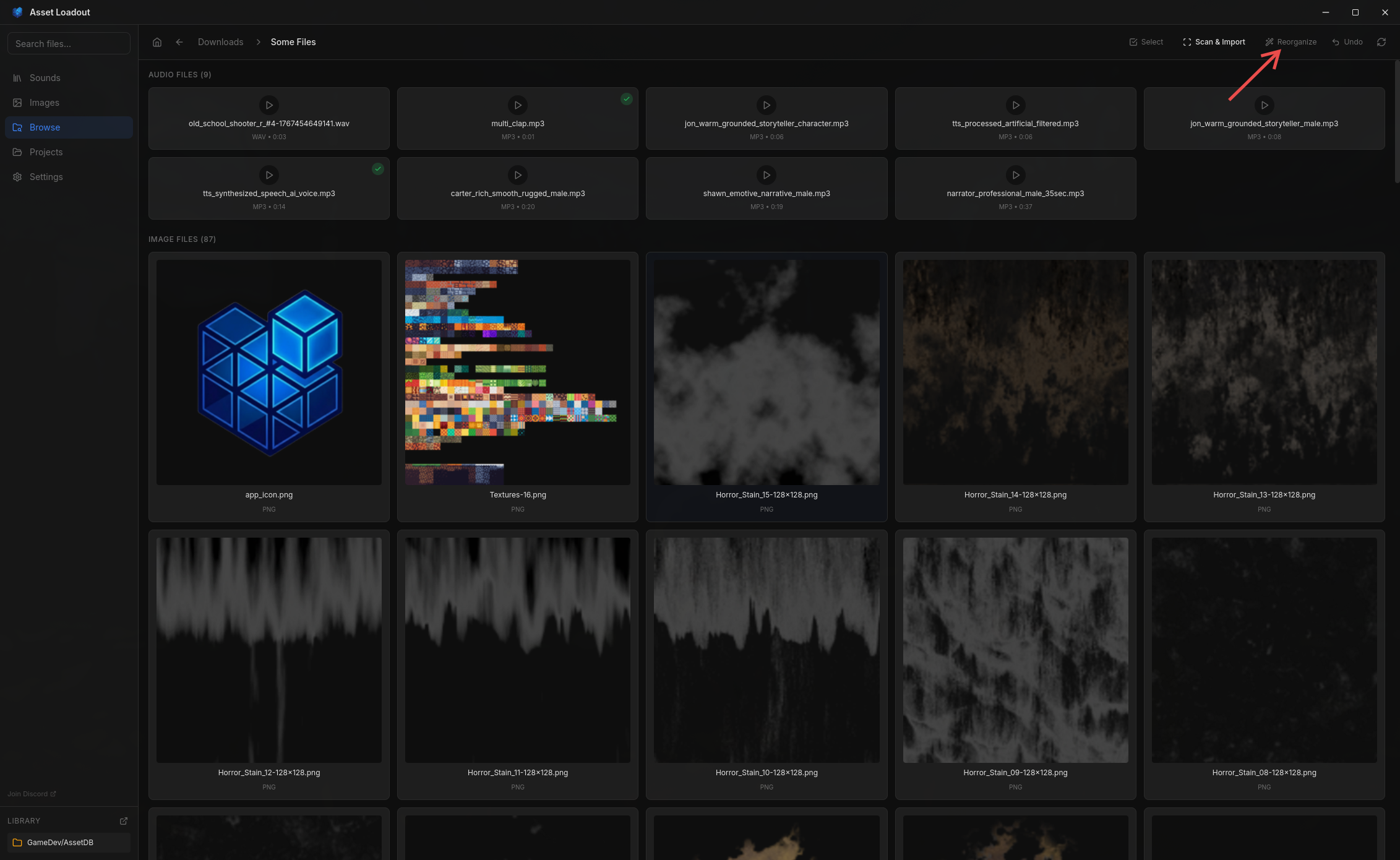
Automatically organize messy asset folders using AI. Available from the Browse tab, this powerful feature analyzes your files, creates a logical folder structure, and reorganizes everything with full undo support.
Overview
Two-Step Processing
Images and audio files are processed separately, each with their own analysis pass and plan preview. This ensures accurate categorization for each asset type.
Plan Before Execute
After AI analysis, you'll see a complete plan showing folder structure, file moves, and renames. Nothing happens until you confirm.
Full Undo Support
Every reorganization creates a rollback file. Return to the target directory root anytime to undo and restore original file locations.
Smart Detection
AI only moves files that need reorganization. Well-named files in appropriate folders are left alone, minimizing unnecessary changes.
Step 1: Configure Options
Right-click any folder in the Browse tab and select "Reorganize with AI" to open the configuration modal.
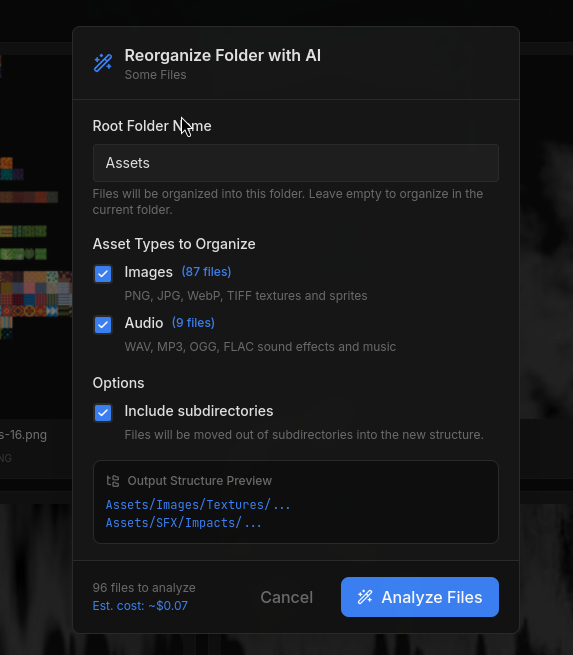
Root Folder Name
Set a root folder name (e.g., "Assets") where organized files will go. Leave empty to organize files in place within the current folder.
Asset Types
Choose which types to include: Images (PNG, JPG, WebP, TIFF) and/or Audio (WAV, MP3, OGG, FLAC). File counts update in real-time.
Include Subdirectories
When enabled, files from all subdirectories are scanned and moved into the new structure. Disable to only process the current folder.
Cost Estimate
See the estimated API cost before starting based on file count and your selected AI model.
Step 2: AI Analysis
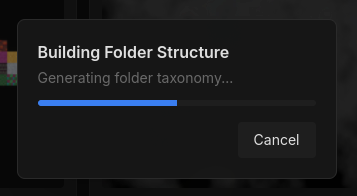
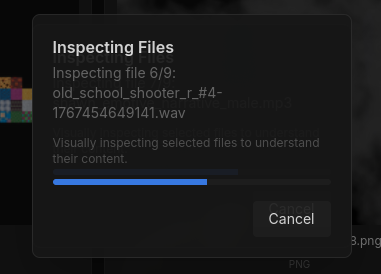
Click "Analyze Files" to start the AI analysis. This process runs in two phases - images first, then audio. Each file is analyzed to determine optimal naming and categorization.
Processing Time
Analysis takes a few minutes depending on file count. Images are analyzed via direct vision, audio via spectrogram generation.
Folder Taxonomy
AI creates a logical folder structure based on file content: SFX/Impacts, Images/Textures, Music/Ambient, etc.
Step 3: Review & Confirm Plan
After analysis, you'll see a detailed plan preview. Review the proposed changes before executing.
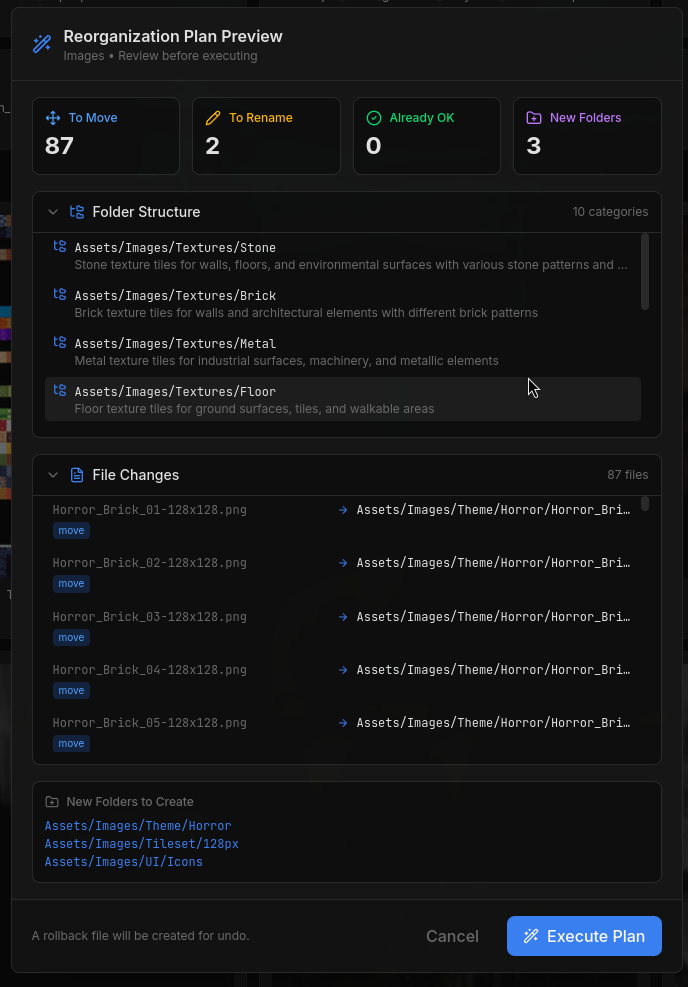
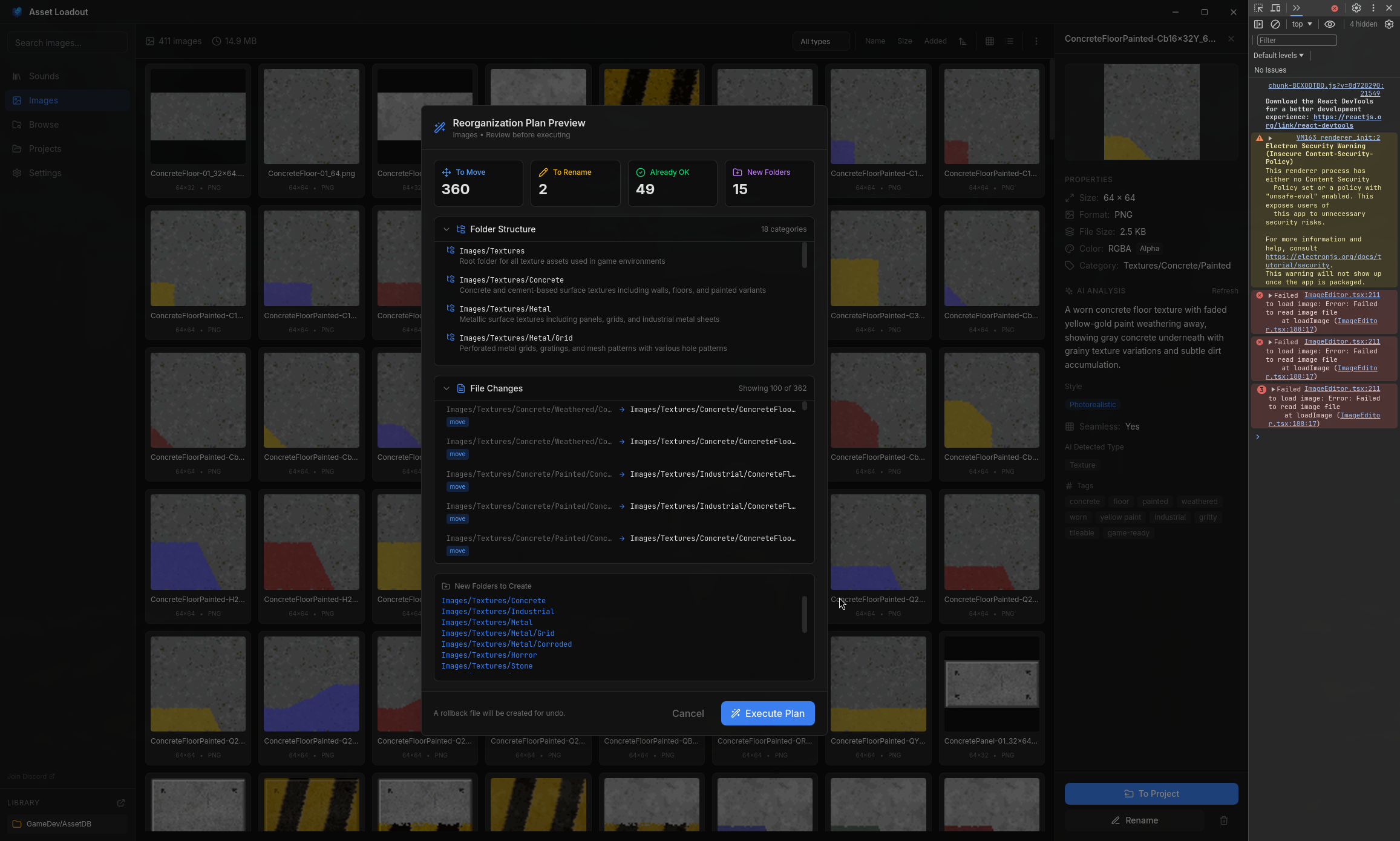
To Move
Files moving to new folders
To Rename
Files getting new names
Already OK
Well-organized files (no change)
New Folders
Folders to be created
Plan includes: Summary statistics, complete folder taxonomy with descriptions, sample file moves showing before/after paths, and list of new folders to create.
Step 4: Execute
Click "Execute Plan" to apply the changes. Files are moved and renamed according to the plan. A rollback file is automatically created.
What happens:
- • New folders are created based on the taxonomy
- • Files are renamed to snake_case with descriptive names
- • Files are moved to their appropriate category folders
- • Duplicates get _01, _02 suffixes automatically
- • A .rollback.json file is created for undo functionality
Undo Reorganization
Changed your mind? Navigate back to the target directory root (where you initiated the reorganization) and click "Undo Reorganize" in the toolbar.
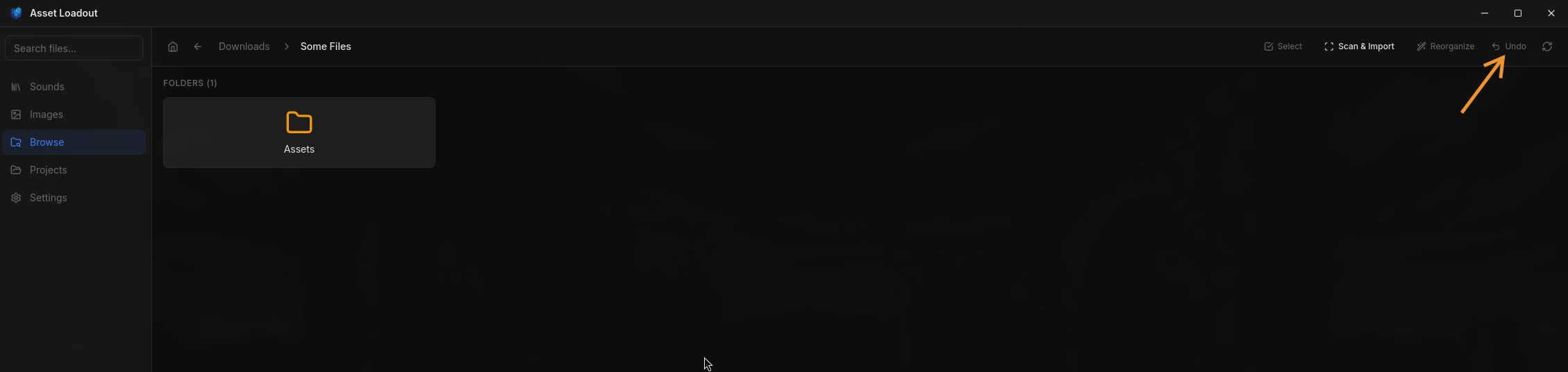
Where to Undo
The undo option only appears when you're at the root directory where the reorganization was performed. Navigate there to see the option.
What Gets Restored
All files are moved back to their original locations with original names. Created folders are removed if empty.
Note: The rollback file (.rollback.json) is stored in the target directory. Don't delete it if you want to keep the undo option available.
Tips & Best Practices
Start Small
Test on a small folder first to see how the AI categorizes your specific assets before running on large directories.
Use Fast Models
For large batches, use a "Fast" AI model (Haiku, GPT-4o Mini, Flash) to reduce costs while still getting good results.
Review the Plan
Always review the plan preview carefully. Check the folder taxonomy and sample moves make sense before executing.
Keep Rollback Files
Don't delete .rollback.json files until you're certain the reorganization is correct. They're small and enable full undo.
Next: Explore More Workflows
Learn other efficient workflows for managing your game assets.
Explore Workflows →